


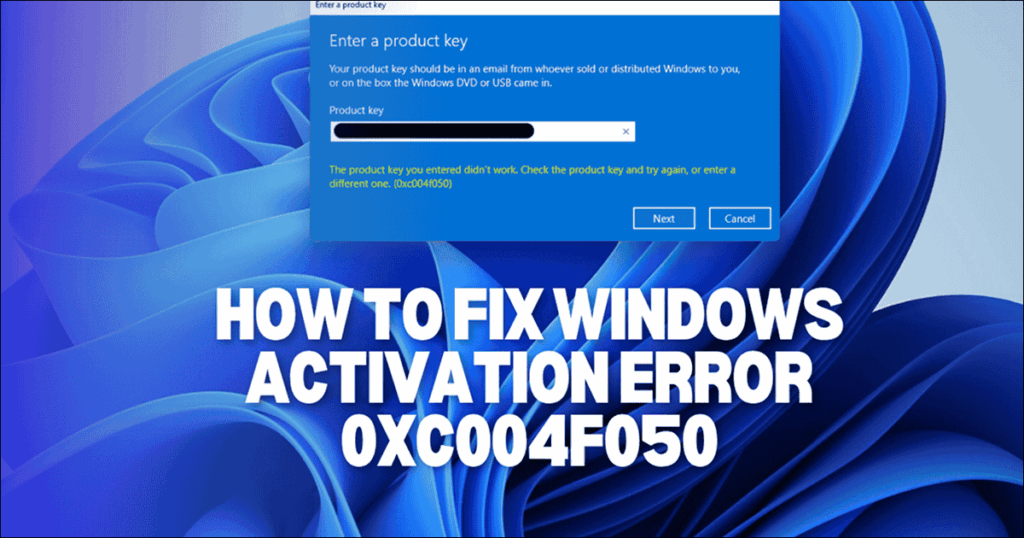
Few things are more frustrating than entering a product key and watching Windows reject it. This guide is for anyone encountering Windows activation error 0xC004F050, whether you’re upgrading, reinstalling, or troubleshooting a new PC. Error 0xC004F050 is one of the most common activation roadblocks on Windows 10 and Windows 11, and it doesn’t always mean what you think. This guide walks you through every fix-from a 30-second settings check to advanced command-line tools-so you can activate Windows and get back to work.
What Error 0xC004F050 Means & Quick Fix Checklist
Windows activation error code 0xC004F050 translates to a simple message from Microsoft’s Software Protection Service: “The product key is invalid.” It typically appears when you enter a product key during the activation process, attempt a Home to Pro upgrade, or try to reactivate after reinstalling Windows on new hardware.
A product key is a unique code that activates a specific edition of Windows. Each product key is valid for a specific Windows edition (such as Home or Pro), and using a key for a different edition will cause activation errors like 0xC004F050. A Windows edition refers to the specific version of Windows installed on your device, such as Windows 10 Home, Windows 10 Pro, or Windows 11 Pro. The validity of a product key is directly tied to the edition it is meant for if you try to activate a different edition with a mismatched key, you will encounter errors like 0xC004F050.
The error does not automatically mean your key is fake or useless. It often points to a mismatch between the edition installed on your PC and the edition your key supports, a temporary issue with Microsoft’s activation servers, or an incorrect product key entry.
Before diving into deeper troubleshooting, run through this quick first-aid checklist:
- Verify your internet connection is stable (try plugging in an ethernet cable if Wi-Fi is unreliable).
- Check which Windows edition is installed-Home, Pro, or Education.
- Confirm the key was typed correctly (watch for common misreads like O vs. 0).
- Sign in with the microsoft account that holds your digital license.
- Restart your computer and retry activation once.
This guide covers both Windows 10 and Windows 11. Where the steps differ, we’ll call it out. At Indigo Software, we’re a genuine Windows license specialist-a veteran- and family-owned business based in Texas-and we help customers resolve activation issues with real, traceable keys. If you’re working with a non-genuine or reused key from a marketplace, you may ultimately need a new license, which we’ll address later.
Main Causes of Windows Activation Error 0xC004F050
Identifying the root cause is the fastest path to a fix. Here are the most common reasons error 0xC004F050 appears:
- Edition mismatch – Using a product key for a different Windows edition causes errors. For example, a pro key won’t activate a Home installation.
- Incorrect key entry – A single wrong character will trigger the error.
- Key already in use – Product keys can only be used on one active installation at a time.
- Blocked or invalid key – Microsoft may block keys that are over-used, stolen, or sourced from unauthorized channels.
- Significant hardware changes – Replacing your motherboard or making other major component swaps requires reactivation of Windows, and often triggers this error code.
- Activation server delays – Windows activation servers can be busy, causing errors even with a valid key. Waiting a few hours and retrying often resolves this.
- Generic key confusion – Generic keys and pro upgrade paths behave differently from full retail keys. Confusing these is a frequent source of error 0xC004F050.
- Volume-license keys – These might not be meant for standard retail use and will fail on consumer editions.
In the next sections we’ll walk through step-by-step fixes for each scenario, starting with the fastest options inside Windows Settings.
Run the Windows Activation Troubleshooter (Windows 10 & Windows 11)
Microsoft’s built-in Activation troubleshooter can automatically activate and resolve many error code 0xC004F050 issues-especially those caused by hardware changes or edition confusion. Old or corrupted cache can also block activation, and the troubleshooter clears this during its scan. Keep in mind that activation servers can experience delays after purchasing a key, so give it a moment.
On Windows 11:
- Click the Windows logo on your taskbar, then open Settings > System > Activation.
- If Windows isn’t activated, click Troubleshoot.
- The tool will scan your system, compare the digital license associated with your microsoft account, and attempt to reactivate.
On Windows 10:
- Select Start > Settings > Update & Security > Activation.
- Click Troubleshoot.
- Follow the on-screen prompts.
You can also verify your installed edition at Settings > System > Activation to confirm Windows knows which version you’re running.
Make sure you’re signed in with the same microsoft account you used when you first activated or purchased Windows. Without it, the troubleshooter can’t locate your digital license.
After the troubleshooter completes, restart your device and check whether error 0xC004F050 still appears before moving on. If you need a walkthrough on entering keys, see our guide on how to activate Windows 10 with a CD key.
Check Your Windows Edition vs. Your Product Key
Each product key is valid for a specific Windows edition. A Windows 10 Pro key will not activate a machine running Windows 10 Home, and a pro upgrade key won’t work on a fresh install of Pro. This edition mismatch is one of the single most common causes of error 0xC004F050.
How to verify your edition:
| Step | Windows 11 | Windows 10 |
|---|---|---|
| 1 | Settings > System > About | Settings > System > About |
| 2 | Scroll to “Windows specifications” | Scroll to “Windows specifications” |
| 3 | Look for “Edition” (Home, Pro, etc.) | Look for “Edition” (Home, Pro, etc.) |
Now compare that edition with what’s listed on your product key invoice or order email. Common labels include “Windows 11 Pro Retail,” “Windows 10 Pro Volume,” or “Home to Pro Upgrade.” If they don’t match, activation will fail until you either change the edition installed or use the correct key.
Not sure whether you have a Home or Pro key? Our comparison of Windows 11 Pro vs Home can help clarify the differences. Indigo Software customers can also contact our support team with their order number-we’ll confirm which edition your key covers.
Fix Home to Pro Upgrade Errors (Including Pro Upgrade Error 0xC004F050)
This section is specifically for users trying to upgrade from Windows 10 or Windows 11 Home to Pro and hitting the pro upgrade error: “We can’t activate Windows on this device because you don’t have a valid digital license or product key. Error code: 0xC004F050.”
The proven method many IT professionals use is the “generic key first, then your purchased key” approach. Using a generic key can help resolve error 0xC004F050 by forcing the edition switch before you apply your real license.
Steps for Windows 10:
- Disconnect from the internet temporarily (disable Wi-Fi or unplug the ethernet cable).
- Go to Settings > Update & Security > Activation.
- Click Change product key.
- Enter the official generic key: VK7JG-NPHTM-C97JM-9MPGT-3V66T (also written as vk7jg nphtm c97jm 9mpgt / nphtm c97jm 9mpgt 3v66t).
- Select activate and wait for the edition upgrade to begin. Restart when prompted.
Steps for Windows 11:
- Disconnect from the internet.
- Open Settings > System > Activation > Change (under “Change product key”).
- Enter the same generic Pro upgrade key: VK7JG-NPHTM-C97JM-9MPGT-3V66T. Windows 11 requires this special generic upgrade key to complete the upgrade from Home to Pro.
- Follow prompts to complete the upgrade, then restart.
After your PC reboots as Pro, reconnect to the internet and immediately return to Activation settings. Replace the generic key with your purchased pro key from Indigo Software or another genuine source.
Generic keys are for edition switching only. They will not permanently activate Windows. Your system will show an “Activate Windows” watermark until a valid retail or volume product key is entered.
If the generic key itself fails with error code 0xC004F050, it may indicate corrupted system files or a specific user profile issue-see the advanced fixes section below.
Handle Hardware Changes, Reinstalls, and Linked Microsoft Accounts
Significant hardware changes-especially replacing the motherboard or migrating to an entirely new PC-can trigger error 0xC004F050 because the activation servers see your device as “new.” Significant hardware changes may require reactivation of Windows even with a legitimate key.
Check if your windows license is linked to your account:
Go to Settings > Activation and look for: “Windows is activated with a digital license linked to your Microsoft account.” If you see this, you’re in good shape for recovery.
Reassign your license after hardware changes:
- Run the Activation troubleshooter (steps in section 3 above).
- Select “I changed hardware on this device recently.”
- Pick your current device from the list tied to your microsoft account.
- Confirm to reassign the digital license.
License type matters:
- OEM keys stay with the original computer and generally cannot transfer.
- Retail keys (like those from Indigo Software) can move to a new device, provided you remove them from the old one first.
If you performed a fresh install of Windows 11 Pro without first upgrading from Home, you may need to install windows using the correct edition ISO so your pro key validates properly.
If online activation fails, Windows can be activated by phone. Choose Activate by Phone from the activation options, or type slui 4 into the Run dialog. You must send an installation ID during phone activation, and Microsoft’s automated system will return a confirmation ID. For a full walkthrough, check our phone activation guide.
Advanced Fixes: SLMGR Commands, Clean Install, and Corrupted OS
If you’ve tried everything above and still see error 0xC004F050, it’s time for deeper fixes using the Command Prompt and, potentially, a clean installation, similar to the advanced methods covered in our dedicated Windows activation error 0xC004F050 troubleshooting guide.
SLMGR commands (run Command Prompt as Administrator):
- Type slmgr.vbs /upk and press Enter – this will uninstall the current key.
- Type slmgr.vbs /ipk YOUR-PRODUCT-KEY and press Enter – this installs your new license key.
- Type slmgr.vbs /ato and press Enter – this forces online activation.
You can also type slui in the Run dialog to open the activation UI directly. To activate Windows using Command Prompt, run these commands carefully and only use keys you legally own.
Test with a new user profile:
Persistent errors can stem from profile corruption. Create a new local administrator account, sign in, and attempt activation from that profile. If it works, the issue was specific to the earlier versions of your user profile data.
When to perform a clean install:
- Repeated failed Pro upgrades after trying the generic key method
- System instability or corrupted OS files
- Major version transitions (for example, upgrading old Windows 10 builds to new Windows 11 Pro)
Back up your data first, then use the Microsoft Media Creation Tool or a Windows 10 to Windows 11 ISO upgrade to create official installation media. Select the correct edition (Home vs. Pro) during setup. If your windows license is a digital license linked to your account, skip entering a key during setup-Windows should automatically activate after the fresh install completes and you sign in. If it’s a retail key, enter it when prompted.
If you’re uncomfortable with command-line tools or rebooting into a clean install, reach out to Indigo Software’s US-based support team. We can guide you step-by-step via email or remote session.
When You Need a New Key (and How Indigo Software Can Help)
Sometimes error 0xC004F050 genuinely means the key is done. This is common with ultra-cheap keys from auction sites and unauthorized marketplaces.
Replace your key if:
- Microsoft reports the key as blocked or invalid after verify attempts
- The key has been activated on multiple PCs by a previous owner
- The seller can’t provide traceable proof of purchase from an authorized Microsoft channel
Indigo Software is a veteran- and family-owned Texas business specializing in genuine Microsoft software at discounted prices, including Windows and Office licenses. Every key comes with a lifetime guarantee, instant delivery, and activation support included-no subscriptions, just a one-time purchase.
- Get a genuine Windows 11 Pro key from Indigo Software
- Buy an authentic Windows 10 Pro license with lifetime activation
Already purchased from us and still seeing the error? Contact our Indigo Software support team with your order number. We’ll validate the key, check the edition match, and provide a working solution at no additional cost.
FAQs About Windows Activation Error 0xC004F050
Can I fix error 0xC004F050 after replacing my motherboard?
Yes-if your license is retail or a digital license linked to your microsoft account. Use the Activation troubleshooter’s “I changed hardware on this device recently” option to reassign it. OEM keys tied to the original motherboard generally cannot transfer.
Should I use a generic key to activate Windows permanently?
No. Generic keys only switch your edition (for example, Home to Pro). They will not permanently activate your system. After the edition change completes, you must enter a valid retail or volume key to remove the “Activate Windows” watermark and complete the activation process.
If none of the fixes above resolve error code 0xC004F050, our team at Indigo Software is ready to help. Browse our full Windows catalog, log in to your Indigo Software account, or reach out directly-we’ll diagnose your license and get you activated.
Does error 0xC004F050 mean my Windows product key is fake?
Not necessarily. While non-genuine windows keys are a frequent cause, the error code also fires on edition mismatches, hardware changes, server delays, and simple typos. For more background on our licenses and support policies, see the Indigo Software FAQ and troubleshooting guidance. Check your edition and key type before assuming the worst.
Discover more from Indigo Software
Subscribe to get the latest posts sent to your email.


