


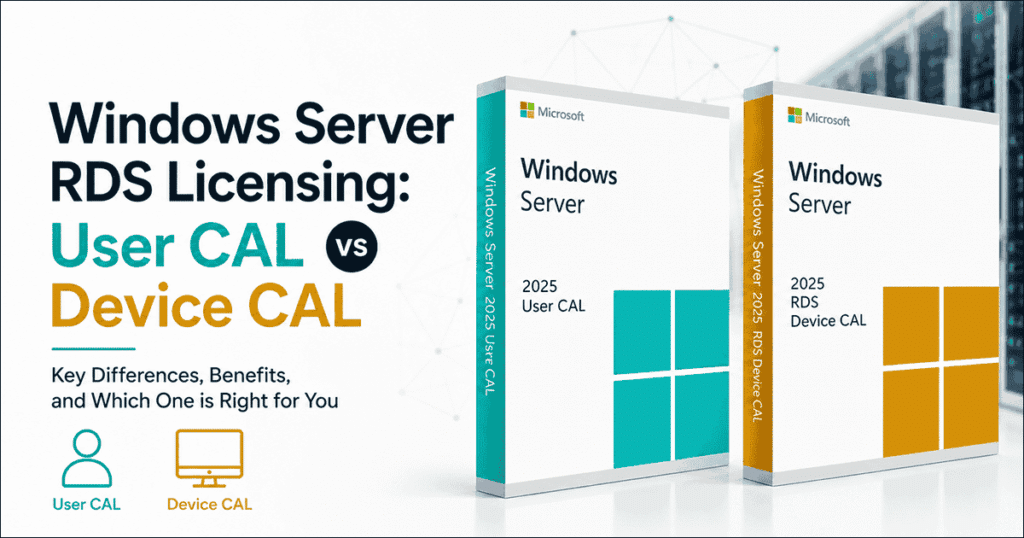
Every user or device that connects to a Windows Server running Remote Desktop Services (RDS) needs an RDS CAL – an RDS Client Access License. The choice between a User CAL and a Device CAL determines how those licenses are assigned, tracked, and enforced. Choosing the wrong type can mean overspending on licenses or failing a Microsoft audit.
This guide breaks down the differences between RDS User CALs and Device CALs, explains when each makes sense, and provides pricing comparisons to help you make a cost-effective decision.
What is an RDS CAL?
An RDS CAL (Remote Desktop Services Client Access License) is a license required for each user or device that connects to a Windows Server with the RD Session Host role installed. Remote Desktop Services licensing is strictly enforced by the operating system – not having the appropriate number of RDS CALs installed can restrict RDP connections and lock users out.
It’s important to understand that an RDS CAL is separate from a standard Windows Server CAL. Every user or device that accesses the server for basic network resources like file share or printing needs a base Windows Server CAL. If those same users or devices also need remote desktop access, an additional RDS CAL is required on top of the base license.
When you first install the RDS Session Host role on a new server, you must also plan how you will set up and configure Remote Desktop Services on Windows Server. Microsoft provides a 120-day grace period. During this window, the server accepts RDP connections without a configured RD Licensing Server or valid RDS CAL licenses. Once the grace period expires, all client connections (except administrative sessions) are blocked until proper licensing is in place.
RDS CALs must match or exceed the version of the Windows Server operating system running the session host. For example, connecting to Server 2025 requires 2025-version RDS CALs. However, a 2025 RDS CAL also works with Server 2022, 2019, and 2016 – giving you backward compatibility if you upgrade your server later.
User CAL vs Device CAL: Key Differences
The core difference is straightforward: a User CAL licenses an individual person, while a Device CAL licenses a specific device.
- User CAL: One person can access RDS from an unlimited number of devices – laptop, desktop, tablet, phone – all covered under a single license.
- Device CAL: One device is licensed, and any number of users can use that device to connect to the server. Five users sharing a kiosk need only one Device CAL.
Both license types provide the same level of RDS access and functionality. The difference lies entirely in how the license is assigned and tracked.
| Feature | User CAL | Device CAL |
|---|---|---|
| Licensed to | Individual user account | Specific device |
| Multi-device access | Yes – any device | No – assigned device only |
| Multi-user sharing | No – one user per CAL | Yes – unlimited users per device |
| Requires Active Directory | Yes | No (works in workgroups too) |
| Server enforcement | Not technically enforced | Strictly enforced by license server |
| Manual revocation | Not available | Up to 20% of issued CALs |
User CAL Explained
Per user CALs allow access from any device. When you assign an RDS User CAL to a person’s Active Directory account, that individual can connect from their office desktop, home laptop, tablet, or phone – all under one license.
User CALs offer ultimate flexibility for mobile workforces. In today’s hybrid and BYOD environments, employees regularly switch between different devices throughout the day. Rather than licensing each endpoint, you license the person once.
How tracking works: User CALs are managed through Active Directory. The license server does not technically enforce a connection limit per user – Microsoft expects organizations to track RDS CALs internally and maintain enough licenses to cover every unique user who connects. A permanent per-user CAL shows an expiration of 60 days after issuance but automatically renews when the user signs in again.
The tradeoff: User CALs can be complex to manage for large organizations. Because there’s no automated blocking when you exceed your licensed user count, under-licensing is a real audit risk. You need solid internal governance and regular usage reporting from the RD Licensing Manager to stay compliant.
Device CAL Explained
Device CALs are assigned to individual devices, not users. When a device connects to RDS for the first time, the license server issues a temporary license valid for 90 days. On subsequent connections, if permanent slots are available, it upgrades to a permanent per device CAL that renews every 52–89 days.
Device CALs simplify management by licensing devices, not users. This makes them ideal for environments where multiple users share a single computer – call centers, retail POS terminals, factory floor stations, or hospital workstations. Per device CALs are simpler to manage than per user CALs in these scenarios because you simply count machines.
Enforcement is stricter: Unlike user CALs, the RD Licensing Server actively tracks each RDS device CAL. If a device connects and no CALs are available, the connection is refused. This automatic enforcement makes auditing simpler but also means you need to plan capacity carefully.
Revocation rules: Microsoft allows manual revocation of up to 20% of issued device CALs. This accommodates hardware replacements – if you retire a computer, you can free up that license for a new one. Devices that stop connecting automatically release their CAL after the renewal interval expires.
Device CALs are less flexible, limiting access to assigned devices. They work in both domain and workgroup environments, which makes them the only option if your RDS environment lacks Active Directory.
When to Choose User CAL
For organizations standardizing on Server 2019, implementing per-user licensing often goes hand in hand with installing and activating Windows Server 2019 RDS with 50 User CALs to support a large remote workforce.
The per user model is the right choice when:
- Your workforce is remote or hybrid. Employees accessing from home PCs, office desktops, and mobile devices all need just one CAL each. Per user CALs are ideal for remote work scenarios.
- You have BYOD policies. User CALs are more flexible for organizations with multiple devices per user – you don’t need to license every personal laptop or tablet.
- Your user count is lower than your device count. For example, 50 employees each using 3 different devices means 50 user CALs versus 150 device CALs.
- Active Directory is in place. User CALs require AD for proper tracking and management.
Generally speaking, organizations with many users who access from multiple devices benefit from per user CALs. User CALs are ideal for businesses with multiple devices per user and for remote workers and employees switching workstations frequently.
When to Choose Device CAL
Device CALs are cost-effective for fewer devices:
- Shared workstation environments. Retail stores, manufacturing floors, healthcare terminals, and call centers where many employees rotate through the same machines.
- Shift-based operations. When 50 workers share 10 workstations across three shifts, you need 10 device CALs – not 50 user CALs.
- Fixed terminal setups. Kiosks, lab computers, and POS systems where the number of devices is clearly defined and stable.
- No Active Directory. Device CALs are suitable for environments where multiple users share a single computer and user accounts aren’t managed through AD.
Device CALs are cheaper for organizations with fewer devices and a high user-to-device ratio. Device CALs simplify management for organizations with fewer devices because counting physical machines is straightforward.
Cost Comparison Table
Per user CALs are more expensive than per device CALs at list price, especially when you look at volume options such as RDS for Windows Server 2019 50 User CAL packs. The following table shows approximate pricing for RDS CAL licenses across current Windows Server versions:
| Product | User CAL (per unit) | Device CAL (per unit) |
|---|---|---|
| Windows Server 2019 RDS CAL | ~€34.00 | ~€30.00 |
| Windows Server 2022 RDS CAL (5-pack) | ~$169.99 per pack | ~$169.99 per pack |
| Windows Server 2025 RDS CAL | ~$201 per user | ~$147 per device |
| RDS CALs can be purchased in packs to reduce costs – 50 User CAL packs for Server 2022 and Server 2025 offer significant volume savings compared to individual purchases. |
Break-Even Analysis
Count the total number of unique users and unique client devices to minimize CAL costs:
- 20 users sharing 5 devices: 5 Device CALs (~$735) vs. 20 User CALs (~$4,020). Device CALs save over $3,000.
- 20 users each with 3 devices: 20 User CALs (~$4,020) vs. 60 Device CALs (~$8,820). User CALs save nearly $5,000.
- 50 users on 50 desktops: Either option covers the same count. Device CALs at $147 each cost less than User CALs at $201 each.
Software Assurance adds approximately 25–35% to the cost but provides upgrade rights across server versions – worth considering if you plan to move to Windows Server 2025 or adopt Windows Server 2025 Standard more broadly across your environment.
How RDS CAL Licensing Works at Scale
Managing RDS components at scale requires a properly configured RD Licensing Server. You install the Remote Desktop Licensing role on a server, activate it with Microsoft, then install your purchased CALs, ideally on top of genuine Microsoft Windows Server licenses appropriate for your environment. Every RD Session Host in your environment must point to this license server for validation.
Mixing user and device CALs in the same RDS environment is permitted by Microsoft. For example, you might use User CALs for your mobile sales team while applying Device CALs to shared warehouse terminals, even when those terminals run older platforms such as Windows Server 2012 R2 Standard. However, mixing increases tracking complexity – you need clear boundaries between which groups use which license types.
Audit preparation is critical. Maintain records of CAL quantities purchased, license types, Active Directory user counts, and device inventories, especially when you deploy integrated bundles such as Windows Server 2019 Datacenter with 25 User CALs. The RD Licensing Manager provides usage reports that help you track RDS CALs and demonstrate compliance. Microsoft’s Software Asset Management audits can require exact proof that your licenses match your actual usage.
Version planning: Buying newer-version CALs upfront costs more but provides flexibility. A Windows Server 2025 RDS CAL works with 2022 and 2019 servers, but a 2022 CAL will not work on a 2025 server. If you’re planning a server upgrade, purchasing the newer CAL version avoids repurchasing later, particularly when combined with editions like Windows Server 2022 Datacenter with unlimited VMs and bundled CALs.
User CAL vs Device CAL: Which Should You Choose?
Use this quick assessment:
- Do more users than devices access your server? → Device CALs save money.
- Do employees use multiple devices? → User CALs are more cost effective.
- Is your workforce mostly remote? → User CALs provide access from any device.
- Do you run shared workstations in shifts? → Device CALs are the clear choice.
- No Active Directory? → Device CALs are your only reliable option.
When in doubt, default to User CALs for simplicity and future flexibility – remote and hybrid work patterns continue to grow, and per user licensing accommodates that trend without constant device tracking, especially with bundles such as Windows Server 2022 Standard with 30 User CALs.
For environments with clearly distinct use cases – say, an office team plus a warehouse floor – mixing both CAL types makes business sense, provided you maintain clean boundaries and documentation.
FAQs
Can you mix User and Device CALs in the same environment?
Yes. Microsoft allows mixing user and device CALs in a single RDS environment. Many organizations use User CALs for mobile staff and Device CALs for shared terminals. The key is maintaining clear tracking for each type to stay audit-ready.
Do you need both Windows Server CAL and RDS CAL?
Yes. A base Windows Server CAL is required for every user or device accessing the server for any purpose. An RDS CAL is an additional requirement specifically for remote desktop connections. Both must be in place.
What happens during the 120-day grace period?
After installing the RDS Session Host role, the server accepts RDP connections for 120 days without a license server or valid CALs. After this period, all non-administrative connections are blocked until licensing is properly configured.
How do RDS CALs work with Windows Server 2025?
You need RDS CALs version 2025 or newer to connect to a Server 2025 session host. The license server must also run on Windows Server 2025 or newer to manage 2025 CALs. Older CALs (2022, 2019) will not work with Server 2025.
Are RDS CALs required for every remote desktop connection?
Yes, every user or device connecting to a server concurrently or otherwise via Remote Desktop Services needs a valid RDS CAL. Microsoft does not offer concurrent-session licensing – each unique user or device must be individually licensed regardless of whether they connect simultaneously.
What’s the difference between RDS CAL and Terminal Server CAL?
They are effectively the same thing. “Terminal Server CAL” was the older terminology used before Microsoft rebranded Terminal Services as Remote Desktop Services. Current licensing uses the RDS CAL designation.
How do you track CAL usage for Microsoft audits?
Use the RD Licensing Manager console to generate reports showing issued CALs, active assignments, and available licenses. Cross-reference these with Active Directory user counts and device inventories. Keep purchase records for all RDS CAL licenses to demonstrate compliance during audits.
Setting up a fresh Windows Server 2019 environment? See our step-by-step guide to installing and activating Remote Desktop Services on Windows Server 2019 before you assign CALs.
Discover more from Indigo Software
Subscribe to get the latest posts sent to your email.


