


- Why is This Happening to You? (Common Culprits)
- Fix #1: The "Generic Key" Force-Upgrade (The 90% Fix 0xC004F050)
- Fix #2: Forcing Activation via Command Prompt (SLMGR)
- Fix #3: The Registry "MediaBootInstall" Trick
- The Hardware Change Headache
- The "Grey Market" Trap: Why Cheap Keys Cost More
- Conclusion: Stop Troubleshooting and Start Using Your PC
- Frequently Asked Questions
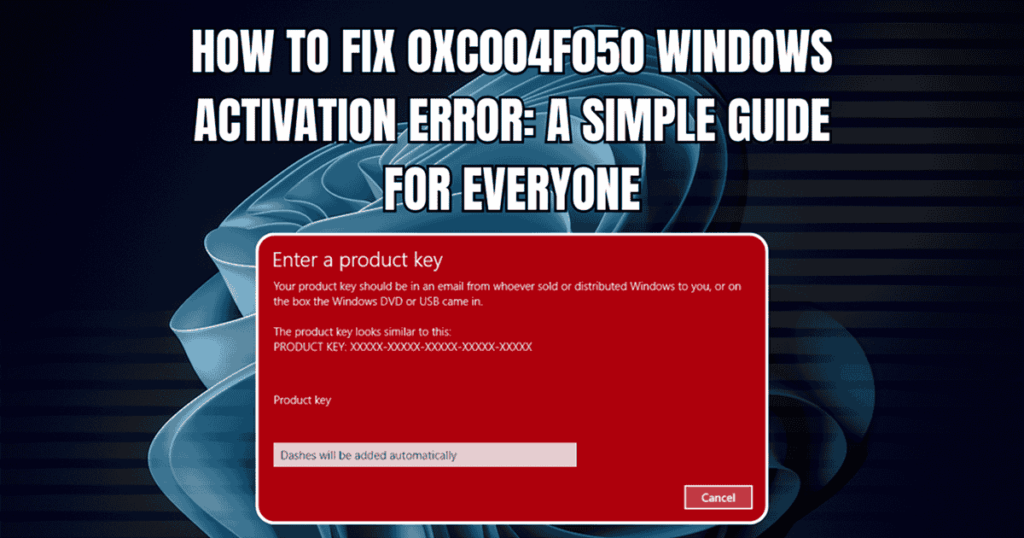
Everybody has been there. You recently completed the construction of a stunning new computer, or perhaps you gave that outdated laptop a new lease on life. You’re prepared to personalize your desktop, your drivers are updating, and you have your coffee. Then you notice that bothersome watermark in the corner. After entering your 25-character product key in Settings, Windows Activation Error 0xC004F050 appears.
It’s really annoying. The error notice essentially informs you that the key was unsuccessful, but it doesn’t explain why. It’s ambiguous, useless, and gives you the impression that your computer is accusing you of lying. To be honest, Microsoft doesn’t always do a good job of explaining why things break; instead, they prefer to draw attention to the fact that they are broken.
In short, this error is like a “Keep Out” sign in the digital world. It means that the activation server checked your key and found that it didn’t match the party it was supposed to go to. This error stops you from customizing your PC, whether you have Windows 10 or the new Windows 11. It might even stop you from getting important security updates in the future.
Why is This Happening to You? (Common Culprits)
Let’s examine the reasons behind these issues. Usually, there are a few particular reasons why 0xC004F050 has to be fixed.
The most common mistake that almost everyone makes is a version mismatch. You might be trying to use a Pro key to install something at home. Windows is picky and won’t just “upgrade” because you asked nicely. If it finds a disagreement, it just stops the process.
Another issue is the “stale” key problem. If you paid the price of a cheeseburger for a key from a site that doesn’t look trustworthy, there’s a good chance that Microsoft has blocked that key. Microsoft monitors those “bulk” keys and terminates them when they discover their sale one at a time.
Finally, there are instances when the activation servers malfunction. Server congestion happens, but it’s not common, especially after a big Windows update. If your internet connection isn’t excellent or you’re behind a strict VPN, your PC can’t connect to Microsoft.
Fix #1: The “Generic Key” Force-Upgrade (The 90% Fix 0xC004F050)
This is the part that most people miss. You have Windows 11 Home installed, but you buy a key for Windows 11 Pro. If the versions don’t match exactly at the start, Windows Home can’t just “transform” into Pro while it’s online and connected to the activation servers.
You might be thinking, “Do I really have to reinstall the whole operating system?” No, thank goodness. A “staging” key lets you force the upgrade.
Instructions in Steps:
- Go offline; this is the most important part. Turn off your Wi-Fi or unplug your Ethernet cable.
- To change the product key, go to Settings > System > Activation > Open Activation Settings.
- Enter the Staging Key: This is the official Microsoft generic key: .
- The Transformation: This key won’t turn on Windows (you’ll still see the watermark), but it will tell Windows to start downloading and unlocking the Pro features.
- Finish: When you’re back at the desktop, turn on your internet again. Now, type in your real retail key.
This bypasses the 0xC004F050 error by ensuring the software version matches the key before the activation server even gets a look at it.
Fix #2: Forcing Activation via Command Prompt (SLMGR)
The standard Settings menu can get stuck in a loop sometimes. We have to look inside when that happens. The “pro” way to do this is with the Software Licensing Management Tool (SLMGR). It talks directly to the system instead of going through the user interface.
First, you need to run the Command Prompt as an administrator. In the start menu, type “CMD,” right-click it, and choose “Run as Administrator.”
When that black box opens, type slmgr.vbs /upk and press Enter. This removes any product keys that might be “clogging” the system right now. You will see a box that says “Confirmation.” Just click “OK.”
Next, hit Enter after typing slmgr.vbs /cpky. This removes the key from your registry. It’s like clearing your browser’s cache, but for your license.
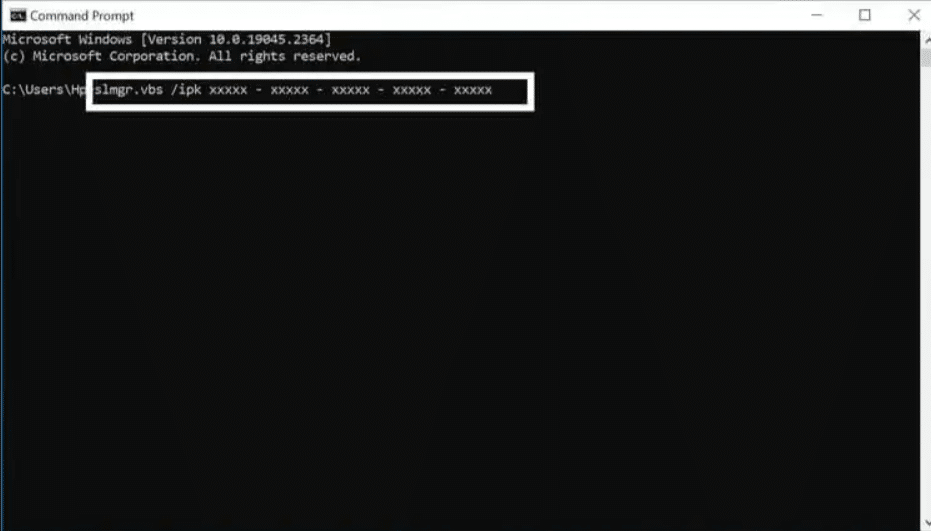
Type slmgr.vbs /ipk XXXXX-XXXXX-XXXXX-XXXXX-XXXXX (replace the Xs with your real key) and press Enter. Finally, type slmgr.vbs /ato to make the activation happen online. If your key is good, you’ll see a nice message that says “Product activated successfully.”
Fix #3: The Registry “MediaBootInstall” Trick
Windows can get confused sometimes if you do a clean install from a USB drive. It believes it was a “upgrade” from an older version, not a new start. This is a common cause of Windows 11 activation error messages.
We need to give the Registry a little push to fix this. Press Win + R, type regedit, and go to:
HKEY_LOCAL_MACHINE/Software/Microsoft/Windows/CurrentVersion/Setup/OOBE
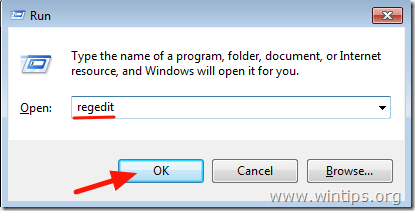
Find a file called MediaBootInstall. Change the value from 1 to 0 by double-clicking it. After that, go back to the Admin Command Prompt and type slmgr /rearm. Restart your computer and try typing in your key again. This “resets” the OS’s activation state and usually gets rid of the 0xC004F050 block.
The Hardware Change Headache
Did you recently swap out your motherboard or move your SSD to a new build? Windows sees this as a completely different computer. If you have an OEM license (the kind that comes pre-installed on a laptop from the factory), it is “married” to that motherboard. It isn’t moving.
However, if you have a Retail License, you can move it. If you’re seeing the 0xC004F050 error after a hardware swap, you need to use the Activation Troubleshooter. Go to Settings > System > Activation, click Troubleshoot, and select “I changed hardware on this device recently.”
This will link your new hardware to your digital license. If that fails, it usually means your previous license wasn’t a retail version, and you’ll need to purchase a new one.
The “Grey Market” Trap: Why Cheap Keys Cost More
Let’s have a heart-to-heart. We’ve all seen those websites selling Windows keys for the price of a cup of coffee. It is incredibly tempting. But here is the reality: those are usually Volume Licenses meant for big corporations.
When Microsoft detects the use of a “corporate” key by 500 different individuals worldwide, they immediately black-hole that key. When you try to use it, you get error 0xC004F050. It’s not that you typed it wrong; it’s that the key has been deactivated by the mothership.
Instead of spending three days scouring forums and messing with your registry, it is much easier to just buy a legitimate Retail Key. A retail key is yours for life. You can move it to a new PC later, and you get actual support if things go sideways.
At Indigo Software Company, we only sell genuine Microsoft software. We’ve helped thousands of people get rid of that “Activate Windows” watermark without the headache. When you buy from us, you’re getting a key that actually works the first time.
Stop the struggle. Buy a genuine Windows 11 Pro key here.
Conclusion: Stop Troubleshooting and Start Using Your PC
When all is said and done, your computer is a tool, not a project. You shouldn’t have to be a computer programmer to change the wallpaper on your computer. Usually, the fix 0xC004F050 process is just about making sure that your software version matches your license or getting rid of a broken registry entry.
If you’ve tried the generic key trick, the CMD commands, and the registry edits and are still getting that error, it’s clear that your product key is the problem. A string of 25 characters shouldn’t ruin your week. Please obtain a valid license, enter it, and continue with your work.
Frequently Asked Questions
Q: Would it be possible to fix 0xC004F050 without getting a new key?
A: Yes, if the problem is just that the versions don’t match (Home vs. Pro). Follow the steps for the “Generic Key” method above. You’ll need a new key if the one you have is blacklisted or not valid.
Q: What does the “Generic Key” do for the upgrade?
A: Think of the generic key as a “stand-in.” It tells Windows to open the Pro files that are already on your hard drive but are hidden. It doesn’t give you a license, so you still need your key to finish.
Q: Will changing my product key make me lose my files?
A: No way. Turning on Windows is just a change in the license. Your pictures, games, and documents will stay safe.
Q: Is Indigo Software Company a real business?
A: Yes! We are experts at giving out real Microsoft licenses and providing great customer service. We’re here to make sure your software works exactly as it should.
Q: What if I have Windows 10?
A: These fixes work almost exactly the same for Windows 10. The 0xC004F050 error has been around for a while, and the “Generic Key” and “SLMGR” methods are the standard fixes for both versions.
Q: Can I use a Windows 10 key to activate Windows 11?
A: Usually, yes. Microsoft allows Windows 10 keys to activate the corresponding version of Windows 11. If it fails, it’s likely due to the version mismatch we talked about earlier.


