


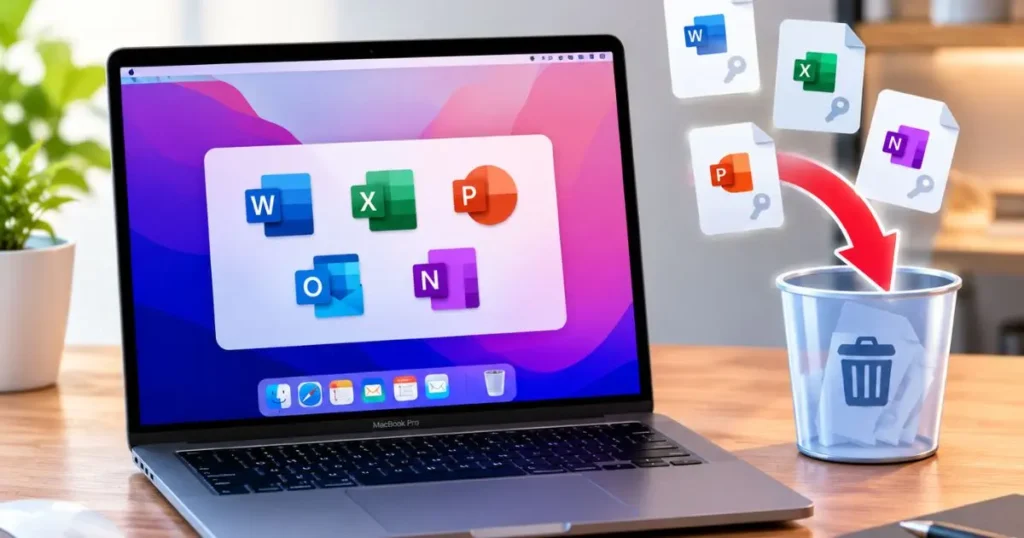
Removing the Office licence files on a Mac is the fix for most activation problems: an account you no longer use, a version you are replacing, or Office asking you to sign in again in a loop. Deleting the licence does not delete your documents or uninstall the apps. It clears the stored sign-in so the next activation starts clean.
There are two ways to do it. Microsoft’s own License Removal Tool does it in one click, which is the right choice for most people. Removing the files by hand is there for when the tool does not finish the job.
When you need to remove the Office licence
- You are switching from a Microsoft 365 subscription to a one-time purchase, or the other way around.
- You bought a new Office licence and the Mac is still holding the old one.
- Office keeps asking you to sign in, or shows an account or activation error that will not clear.
- You are passing the Mac to someone else and want your account off it.
In all of these, the licence data is what is stuck, not the software. Clear it and reactivate.
Method 1: Microsoft’s License Removal Tool (recommended)
- Close every Office app (Word, Excel, PowerPoint, Outlook, OneNote).
- Download the Microsoft Office License Removal Tool from Microsoft’s support site. It is a small, official package.
- Open the downloaded file and run it. It removes the stored licence for all Office apps at once.
- Restart the Mac.
- Open any Office app and sign in or enter your product key to reactivate.
This is the cleanest route and it is what we suggest first.
Method 2: Remove the licence files by hand
Use this only if the tool did not fully clear the problem. Close all Office apps first.
- In Finder, choose Go, then Go to Folder.
- Remove the licensing files and containers. The main ones are the UBF8T346G9.OfficeOsfWebHost and UBF8T346G9.Office group containers in your Library, and the com.microsoft.Office365 files in your Library Preferences folder.
- Empty the Trash and restart the Mac.
- Open an Office app and reactivate.
Moving these to the Trash removes the stored sign-in and activation state. Your files in Documents are not affected.
Reinstall or reactivate
After removing the licence, open any Office app and either sign in with the account that owns the licence, or enter your product key. If you are reinstalling Office itself, our guide to reinstalling Office covers the download and activation order.
If you no longer have a licence, or you want to move off a subscription, Office Home and Business 2021 for Mac and Office 2024 Home, which also runs on Mac, are one-time purchases with no subscription.
Video walkthrough
Frequently Asked Questions
Will removing the Office licence delete my documents?
No. Removing the licence clears the stored sign-in and activation only. Your Word, Excel and other files are untouched, and the apps stay installed. You just reactivate afterwards.
Do I have to uninstall Office to remove the licence?
No. The licence and the software are separate. You can remove the licence and leave Office installed, then sign back in or enter a key to reactivate.
Office keeps asking me to sign in on my Mac. Does this fix it?
Usually, yes. A sign-in loop is almost always a stuck or conflicting stored licence. Removing it with Microsoft tools and reactivating clears the loop in most cases.
I switched Macs. Do I need to remove the licence from the old one?
If you are giving the old Mac away, yes, remove your licence so your account is not left on it. If you are keeping both, check how many devices your licence covers before activating on the new one.
Where can I get a new Office licence for my Mac that is not a subscription?
Office Home and Business 2021 for Mac is a one-time purchase, and Office 2024 Home runs on Mac as well. Both are genuine perpetual licences with no renewal.
The bottom line
A stuck Office licence on a Mac looks like a broken installation, but it almost never is. Clear the licence with Microsoft’s removal tool, reactivate, and the apps work normally again, with your files exactly where you left them.
Discover more from Indigo Software
Subscribe to get the latest posts sent to your email.


