

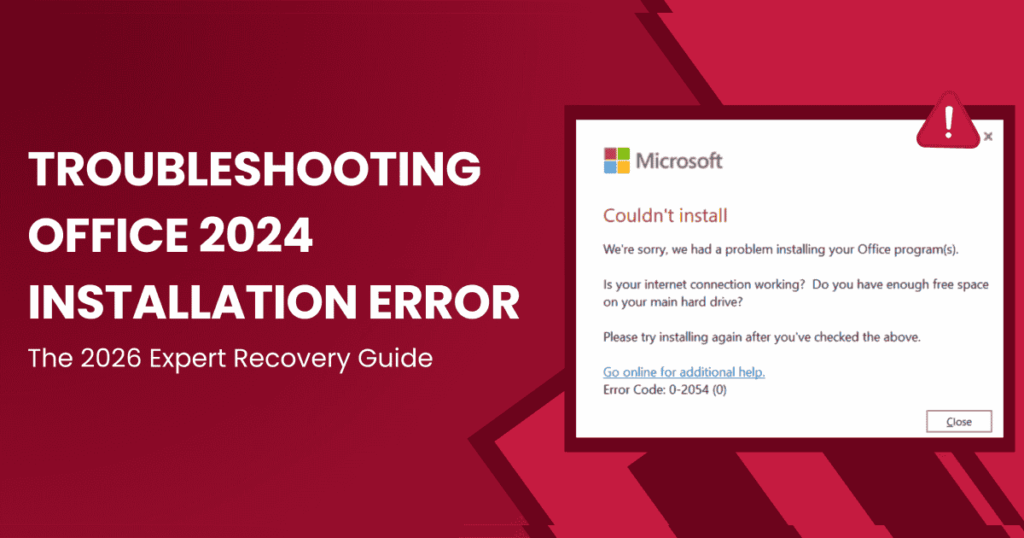
So, you’ve finally made up your mind to upgrade. You took the plunge into the sleek, new world of Office 2024. You’re ready to tackle those spreadsheets with new energy, but then the dreaded progress bar freezes, or worse, an error code that looks more like a winning lottery number than a helpful hint appears.
Let’s be honest: nothing makes you less productive than a software installation that won’t work. It’s like getting a brand-new car and finding out the door handle is broken right away. Don’t worry, though; you’re not the only one in this digital wilderness. We’ve seen every “Error 0x800…” at Indigo Software Company in the sun.
This guide will show you the most common reasons why your Office 2024 download might not be working and how to fix problems with Microsoft Office activation so you can get back to work.
1. Pre-Flight Check: Is Your System Ready?
We need to make sure you’re not trying to run a marathon in flip-flops before we start looking under the hood. Office 2024 is the newest and best version, which means it has some specific needs when it comes to software and hardware.
First, look at your operating system. If you’re still using Windows 7 or 8, I have some tough love for you: it’s time to move on. You need Windows 10, Windows 11, or one of the three most recent versions of macOS to use Office 2024.
Now, let’s talk about “digital clutter.” If you still have pieces of an old Office 365 trial or a dusty copy of Office 2016 lying around, they might be having problems with the new version. Think of it like trying to fit two people into a one-person sleeping bag—it’s going to be uncomfortable, and someone is getting kicked out.
2. Common Office 2024 Install Errors (And Their Meanings)
Microsoft loves its codes. While they might seem intimidating, they usually point to a very specific problem. Here are the usual suspects:
- Error 0-1011 or 30088-22: These usually mean you’ve run out of disk space. Office 2024 isn’t a massive file, but it needs a little “breathing room” to unpack its bags.
- Error 30015-11: This is the “Something went wrong” error. It’s the digital equivalent of a shrug. Usually, this happens because of a conflict with an existing antivirus or a corrupted system file.
- “Office (64-bit or 32-bit) couldn’t be installed”: This happens if you’re trying to mix and match architectures. You can’t have a 32-bit Outlook and a 64-bit Excel. It’s all or nothing, folks.
If you haven’t secured your copy yet, make sure you’re getting the right version for your needs. For instance, the Office 2024 Home and Business edition is perfect if you need Outlook, whereas the Home Edition is great for those who prefer a leaner setup.
3. The “Clean Slate” Approach: Removing Old Versions
The problem is that the normal way to “Uninstall” from the Control Panel doesn’t always work. It leaves behind small folders and registry keys that can cause an error when you try to install Office 2024.
You might be asking yourself, “Do I really need to get rid of my old stuff?” Yes. Of course. We strongly suggest that you use the Microsoft Support and Recovery Assistant (SaRA). It’s a neat little tool that uses a digital scalpel to get rid of all traces of previous installations. After that, restart your computer. No, really, restart it. It’s the oldest trick in the book for a reason.
4. How to Fix Office 2024 Installation Issues
This is the “HowTo” section you’ve been looking for. If you follow these steps in order, you’ll solve about 95% of all installation hiccups.
Step 1: Disable Your Firewall and Antivirus Temporarily
I know, it sounds dangerous. But your antivirus might think the Office 2024 download is a virus. For ten minutes, turn it off while the installer runs. Don’t forget to turn it back on when you’re done!
Step 2: Use a Wired Connection
Wi-Fi is great for looking at cat memes, but it can be unreliable when you need to install a lot of software. If your connection drops for even a second, the installer could get messed up. If you can, connect an Ethernet cable.
Step 3: Run the Installer as administrator.
Right-click that setup file and select “Run as Administrator.” This gives the installer the “VIP pass” it needs to write files to your protected system folders.
Step 4: Use the Offline Installer
If the online stream is failing, Microsoft offers an “offline installer.” This is a larger file that contains everything you need, so it doesn’t have to talk to the internet while it’s installing. This is often the silver bullet for stubborn errors.
5. The Final Boss: Troubleshooting Activation
You have the icons on your computer. You click on Word. It opens! But then a red bar at the top says, “Product Unlicensed.”
To fix Microsoft Office activation, first check your Microsoft account. Is the email you used to sign in really linked to the product key? If you got your key from a trusted source like Indigo Software Company, it should be unique and connect to your Microsoft account.
Another common fix is to check the date and time on your computer. It may sound silly, but Microsoft’s activation servers won’t talk to you if your computer thinks it’s 1999 for security reasons. Set your clock to “Internet Time.”
6. Why Buying Genuine Matters
We’ve all seen those sites that say you can get Office for the price of a cup of coffee. The truth is that those “grey market” keys are the main reason why installations and activations go wrong. They often work for a week and then get blacklisted by Microsoft, which means you get an “unlicensed product” error and can’t get help.
When you purchase Office 2024 Home and Business from us, you’re getting a genuine, lifetime license. More importantly, you get a support team that actually answers the phone. If you hit a wall, we’re the ones who help you climb over it.
Frequently Asked Questions
Q: Can I install Office 2024 on more than one computer?
A: Most Office 2024 licenses, like the Home and Business or Home editions, are “1 Device” licenses. This means that they can only be used with one PC or Mac at a time.
Q: Do I need an internet connection to use Office 2024?
A: You need the internet to download and activate Office 2024 for the first time. After that, you can work offline as much as you want. You don’t have to pay to keep using it!
Q: Why is my Office 2024 install stuck at 90%?
A: This usually happens when the installer is trying to download an update or a language pack in the background. Give it at least 20 minutes. If it still doesn’t move, try restarting the “Print Spooler” service. We promise it will work.
Q: What is the difference between Office 2024 and Microsoft 365?
A: You can only buy Office 2024 once. You only have to pay once to own it. You can pay for Microsoft 365 once a month or once a year. Office 2024 is the best thing that could happen to you if you hate getting bills every month.
Final Thoughts
It shouldn’t feel like a part-time job to install new software. Most of the time, the problems that come up when you try to install Office 2024 are just conflicts that can be fixed by uninstalling it and reconnecting.
If you’re ready to stop troubleshooting and start working, head over to our store and grab a guaranteed license. Whether you need the full business suite or the essentials, we’ve got your back.
Now, finish that installation. Those spreadsheets won’t make themselves!
Discover more from Indigo Software
Subscribe to get the latest posts sent to your email.


