




System Requirements
Before you install Windows 11 Pro, it’s crucial to make sure your device meets the minimum system requirements for a smooth and successful installation. Windows 11 Pro requires a 64-bit processor, at least 4GB of RAM, and 64GB of storage space. Your device must also support Trusted Platform Module (TPM) 2.0, have a graphics card compatible with DirectX 12, and feature a display with a minimum 720p resolution. To check your current system specifications, simply open the Control Panel, select System, and review your device’s details. A valid product key and a Microsoft account are essential for activation and access to all features. If you’re upgrading from a previous version of Windows, you can use Microsoft’s media creation tool to create installation media. This tool allows you to generate a bootable USB flash drive or burn a blank DVD disc, making it easy to install Windows 11 Pro on your device. The media creation tool is available for download from the official Microsoft website, and it provides step-by-step installation instructions to guide you through the process. Some features in Windows 11 Pro, such as Windows Hello, require additional hardware like a fingerprint reader or facial recognition camera. If you plan to use these advanced security options, ensure your device is equipped with the necessary components. For a quick compatibility check, download and run the PC Health Check app from Microsoft’s website. This tool will scan your system and alert you to any compatibility issues that could affect the installation process. A stable internet connection is required during installation, especially if you’re downloading updates or additional files. Be aware that internet service provider fees may apply, and you’ll need sufficient data storage on your device or an external drive to complete the installation. If you’re planning a clean install or reinstall, remember to back up your important files using Windows Backup or another trusted backup solution. To create bootable installation media, you can use the Windows Disk Image Burner or a third-party DVD burner. Make sure to use a blank DVD or a USB drive with enough storage space for the Windows 11 Pro ISO file. Follow the installation instructions provided by the media creation tool to create your bootable USB or DVD, and then use it to install Windows 11 Pro on your device. By confirming that your device meets the minimum system requirements and preparing the necessary installation media, you’ll be ready to experience the new features and enhanced performance of Windows 11 Pro. For those needing a retail key or a valid product key, the Microsoft Store offers secure purchase options, and you can download Windows 11 Pro directly from Microsoft’s official site. With the right preparation, you can enjoy a seamless installation process and unlock the full potential of your new operating system.Discover more from Indigo Software
Subscribe to get the latest posts sent to your email.

 5
5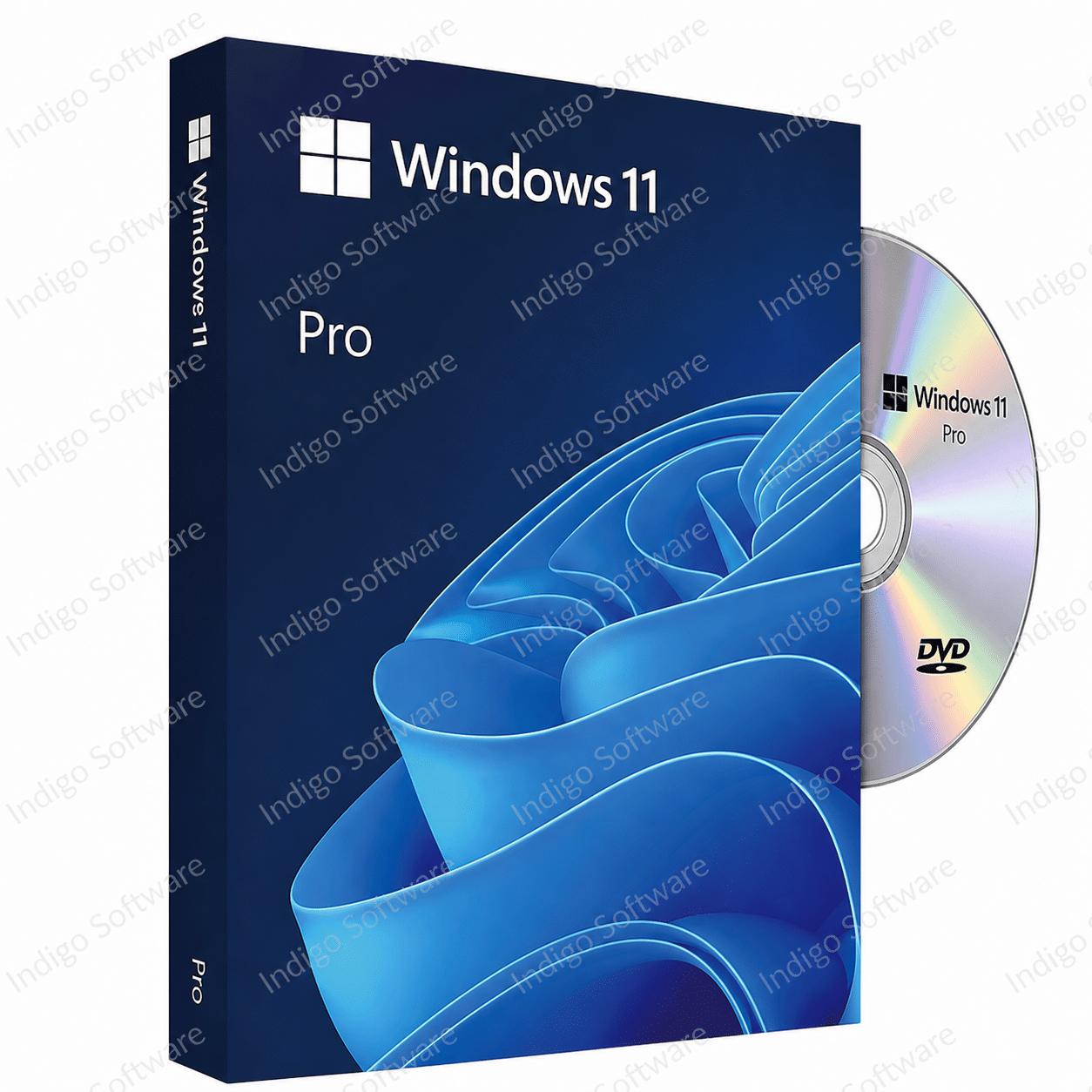


Reviews
There are no reviews yet.